Regulatory information
Article 5 sets out the refuelling obligations and mandates aircraft operators to uplift at least 90% of the aviation fuel* required at Union airports on a yearly basis. In the cases this threshold is not met, aircraft operators shall justify as per Article 5.2 to the CA. Alternatively, the aircraft operators may also request refuelling exemptions on certain routes meeting the criteria set out in Article 5.3.
As per Article 8, the aircraft operators are required to submit by 31 March of each reporting year the completed official reporting template with the data of the respective reporting period to the CA and to the Agency.
* Note that this is valid for both conventional jet fuel and sustainable aviation fuel. There is no obligation on aircraft operators to uplift defined amounts of SAF.
Supportive Resources
The Sustainability Portal is created for Aircraft Operators to submit their verified templates via the data reporting feature.
To support you in this process, please ensure you review the resources(Template, Manual, ...) available in the download section of the EASA ReFuelEU Aviation website.
Introduction
Data reporting occurs through data submissions. Navigate to the data reporting screen, where you can do the following:
- Start a new submission or edit an existing one
- View the status of the submissions
- Filter or export the data submission
Flow
States
Each data submission has a status for Article 8 and a Status for Article 5.2 more details below.
Every time the status of a data submission changes, either the AO or CA will be informed via the daily email digest, depending on who can perform an action.
| Action | Status Article 8 | Status Article 5.2 |
| AO create a draft and can edit the data submission. CA does not see the draft. |
Draft AO Can edit |
|
| AO has submitted to the CA. AO cannot edit. The transition from Draft to Data submitted needs to happen before 31 March 202X |
Data submitted CA Can edit |
|
| CA has requested more info from the AO, the AO can edit and needs to submit again to the CA |
Data needs more info AO Can edit |
|
| AO provided more info. AO cannot edit. |
Data submitted CA Can edit |
|
| CA marks data as reviewed and can start 5.2 review process. AO cannot edit data submission. | Data reviewed |
5.2 Review in progress CA Can edit |
| CA requests more info on Article 5.2. | Data reviewed |
5.2 Needs more info AO Can edit |
| AO provides more info | Data reviewed |
5.2 Review in progress CA Can edit |
| CA processes all justifications + marks justifications as reviewed | Data reviewed | Justifications reviewed |
Detailed Step-by-step guide
Data submission overview
Data reporting is handled via a submission that collects all information in a structured format. It contains the following sections:
- Data uploaded: Essential files for data reporting, including the data report.
- Review data: Error report based on automated checks of the data report.
- Provide 5.2 justification: Justification report based on the uploaded data, indicating where the 90% threshold is not met at a given airport.
- Supporting documents: For files that do not fit in the other dedicated upload fields. Available during the data reporting process for Article 8 and Article 5.2 justification process.
- Verifier information: Provide the required verifier details.
1. Data uploaded
- Click "Data reporting" in the left-hand menu
- Click "Start submission" at the top-right
- Now you can upload:
Now, the portal will provide an overview of the tasks to be performed
Based on the uploaded data 2 tracks have been created, see "2. Review data" and "3. Provide 5.2 justification"
1.1 Reuploading data
IMPORTANT: When an AO needs to re-upload the Template for Aircraft operators, be aware that the data explanations and 5.2 justifications need to be reentered.
To access previous data explanations and 5.2 justifications you can use the "view history" link which is available at the top of the submission.
2. Review data
The portal displays an error report generated by automated checks.
The automated checks are intended to improve data quality. However, some checks may not be valid in certain cases. That is why, with each error, you shall explain.
- Click "Provide explanation"
- Add your explanation and if relevant you can add additional documents
- Click "Add explanation"
The error report contains the following columns to help you review and process the errors.
- Sheet: In which Excel sheet does the error occur
- Position: Position of the cell where the error occurred
-
Type:
- Error: Blocking error for submission, explanation needs to be provided to be able to submit
- Warning: No explanation needed
- Both are based on automated checks.
- Value: Value of cell
- Description: Description of the error, more information in the automated checks.
- Explanation: Preview of explanation if provided
-
Status: Status of error, the following statuses
- Pending: Competent Authority has not yet received the explanation or is still reviewing it.
- Accept: Competent Authority has accepted the explanation
- Reject: Competent Authority has rejected the explanation
- Actions: Provide an explanation
3. Provide 5.2 justification
The portal displays a justification report based on the uploaded data report, indicating where the 90% threshold is not met at a given Airport.
- Click "Provide justification"
- Add your justification explanation, and if relevant, you can add additional documents
- Click "Add justification"
The justification report contains the following columns to help you review and process the justifications.
Row: Display the row number from the "1. Fuel reporting" sheet in the Excel template
Union airport name: Displays the "Union airport name" (Column A)
ICAO: Displays the "ICAO Code of Union Airport" (Column B)
Total flights: Displays the "Total flights operated departing from the Union Airport (Nº flights)" (Column C)
Yearly non-tanked quantity: Displays the "Yearly non-tanked quantity (tonnes)" (Column G)
Yearly tanked quantity for fuel safety rules: Displays the "Yearly tanked quantity for fuel safety rules (tonnes)" (Column H)
Justification: When you added a justification explanation, you see the text here
Status: Status of the justification at a given airport
4. Add supporting documents
Upload supporting documents which do not fit in any of the other dedicated file upload fields.
Available during the data reporting process for Article 8 and Article 5.2 justification process.
5. Add verifier information
Disclaimer: The list of verifiers in the portal is non-exhaustive and for optional use. Aircraft operators may engage with an accredited verifier not currently listed on it. During the submission of the verified report, operators can select a verifier from the portal or manually enter the details of another accredited verification body. The Competent Authority will be responsible to ensure the eligibility of the selected verifier and may request more information about the selected entity. More info on verifiers.
Provide the following details manually or when you have selected a verifier, use the dropdown list to select your verifier and the fields will be filled in automatically.
- Verifier name: First name and last name of the contact person from the Verifier
- Verifier company: Name of organisation
- Verifier email: contact email which can be used by the Competent Authority
-
Verifier phone: phone number which can be used by the Competent Authority
- Expected format: +49 1573 120 2326
- Verification report (file upload), please view the Verification Report Template
- Verification body accreditation (file upload)
- Important: You must click "Save" to store the verifier information
6. Submit to Competent Authority 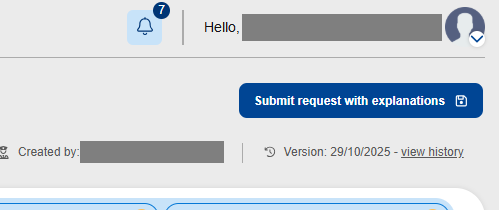
- At the top-right, click submit or submit with explanations in case you have errors.
- Click "Yes, submit" to confirm your submission and send it to the Competent Authority.
The status of the data submission request on the "Data reporting" screen will change from "Draft" to "Submitted".
Your Competent Authority will be notified via the daily email digest.
7. Review by the Competent Authority
The competent Authority will review the complete data submissions
There are two possibilities for the Competent Authority
7.1 Mark as data reviewed
By clicking the button the submission is marked as Data reviewed, the AO will not be able to make any further changes and will be notified via the daily email digest, the status will change from "Submitted" to "Data reviewed".
7.2 Request amendment / information
By clicking the button the competent authority can request an amendment or more information, the status will change from "Submitted" to "Needs more info" and the AO will be able to make the requested changes and submit again.
8. Send notification
During data reporting, the relevant stakeholders will be notified. When a data submission is process is completed, the following stakeholders will be informed:
- Aircraft operator
- The Competent Authority of the operator
- EASA
- European Commission
The notifications will be sent via a daily email digest, which contains all the notifications of the last 24h.
All the notifications will also appear in the notification centre of the portal, see top-right.
Training environment
Use the training environment to test and practice on the data reporting feature.
Test login Sustainability Portal